How to Fix Outlook Data File Cannot Be Accessed Error in Windows?


Emails, contacts, calendar, notes, and all other mailbox information in Microsoft Outlook are stored in PST (Personal Storage Table) or OST (Offline Storage Table) files. When Outlook fails to connect to these files, it results in the error outlook data file cannot be accessed and does not allow you to send and receive emails.
The error may arise due to several factors such as corruption in files, incorrect permissions, damage to Outlook profile, storage location unavailability, and others. However, there is no need to worry about it as the error is generally resolved easily without uninstalling and reinstalling Outlook.
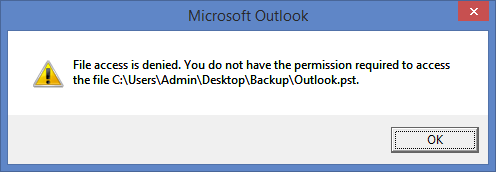
Here, you will learn about the possible causes of the error as well as their corresponding solutions in detail.
Note: The solutions provided below mostly work for Classic Outlook for Windows as it uses PST files.
Why Does “Outlook Data File Cannot Be Accessed” Occur?
There are several cases that might lead to such a problem, among them being:
-
Corrupted PST file
-
Damage to the Outlook profile
-
Lack of file permissions
-
Virus activity
-
PST file saved on network or external drives
-
Incorrectly configured Outlook data file
-
Windows file system error
-
PST file in read-only mode
-
Large PST file
#1: Verify the PST File Location
In some cases, Outlook fails to find the PST file set in configuration. Here are the step-by-step Instructions:
1. Close Outlook application.
2. Press Windows + R.
3. Type:
control
4. Open Mail and select Data Files.
5. Check the presence of the PST file location.
6. In case of the moved file, click “Add” and specify the right PST file.
7. Start Outlook.
Likewise, you can read an article on – how to search in PST file.
#2: Check File Permissions
The “File access is denied Outlook PST” error occurs due to the blockage of access by the Windows operating system. Follow the Steps:
-
Find the PST file.
-
Right-click on the PST file.
-
Choose Properties from the context menu.
-
Navigate to the Security tab.
-
Click on Edit.
-
Make sure that your Windows user account has the following permissions:
-
-
Read
-
Write
-
Full Control
-
-
Apply the final changes.
-
Restart Outlook.
#3: Move the PST to a Local Drive
If the PST file is located on:
-
NAS
-
External disk
-
Network location
-
USB disk
Then Outlook might be unable to open it.
Solution
-
Move the PST file to:
Documents/Outlook Files
-
Start the Outlook program.
-
Navigate to File → Open & Export → Open Outlook Data File.
-
Select the moved PST file.
-
Open it.
According to Microsoft, PST files should be opened only from local storage.
#4: Repair the PST Using SCANPST
Corruption is one of the most common causes of the outlook data file not accessible error.
Steps
-
Close Outlook.
-
Find SCANPST.EXE.
-
Open it.
-
Navigate to your PST.
-
Click Start.
-
Wait for the process to be completed.
-
Select Repair.
-
Reopen Outlook.
The Inbox Repair Tool from Microsoft was created to detect and repair any form of corruption in the PST.
#5: Create a New Outlook Profile
Corrupted Outlook profile could make it impossible for Outlook to open the PST.
Steps:
-
Access Control Panel.
-
Click on Mail.
-
Click Show Profiles.
-
Click Add.
-
Create a new Outlook profile.
-
Configure your email settings.
-
Attach your PST.
-
Make it the default profile.
#6: Check Whether the PST Is the Default Data File
If Outlook identifies an inaccessible PST file, startup problems may happen.
Steps
-
Launch Mail.
-
Go to Data Files.
-
Choose the correct PST file.
-
Hit Set as Default.
-
Relaunch Outlook.
#7: Disable Anti-virus for a Moment
Sometimes anti-viruses keep scanning the PST file while Outlook tries to use it.
Steps:
-
Close Outlook.
-
Disable the anti-virus temporarily.
-
Start Outlook.
If it runs smoothly, exclude PST from the virus scan list.
#8: Repair Microsoft Office
An improperly installed Microsoft Office package could also generate the outlook data file cannot be accessed problem.
Process:
-
Launch Control Panel.
-
Select Programs.
-
Navigate to Microsoft Office.
-
Select Change.
-
Click on Quick Repair.
-
In case of need, do Online Repair.
-
Reboot your computer.
#9: Check the Health Status of the Disk
Corrupt sectors could stop Outlook from accessing PST files.
Path:
-
Launch Command Prompt with administrator permissions.
-
Type:
chkdsk C: /f /r
-
Allow Windows to check and fix the disk.
-
Reboot your PC.
#10: Launch the PST in a Viewer Tool
Sometimes the PST file itself is fine, but Outlook does not open it because of profile problems or problems with the program itself. In that case, the tool called Free PST Viewer Software will allow you to access the contents of the PST file without installing any Outlook packages.
What If You Receive “You Don’t Have Appropriate Permission to Perform This Operation”?
A related problem may be:
You don’t have the proper permission to do this task
This often implies that there are permission problems in Windows and not Outlook corruption problems.
Solutions include:
-
Taking ownership of the PST file.
-
Giving Full Control permissions.
-
Deleting the Read-only permissions.
-
Copying the PST to another location on your computer.
-
Running Outlook as Administrator.
-
Creating a new Outlook profile.
Frequently Asked Questions
Q. Why does Outlook indicate that the data file cannot be accessed?
Ans. This error is mostly due to PST file corruption, improper permission settings, bad Outlook profiles, or inaccessible storage.
Q. Is it possible to repair a corrupted PST file?
Ans. Yes, Microsoft offers Inbox Repair Tool (SCANPST.EXE) for repairing a number of PST file problems.
Q. Why is my PST file of Outlook not visible?
Ans. It can either be moved, deleted, unlinked to Outlook, or the Outlook profile might have a wrong path.
Q. How does Windows 10 affect PST file access?
Ans. The Outlook PST cannot be opened in Windows 10 problem is mostly attributed to permissions, PST corruption, or location of the file.
Final Words
However, the Outlook data file cannot be accessed error will hinder your work process, but the good thing is that you can fix this error by figuring out the root cause behind this problem. To start with, you have to ensure the PST file location is correct, have enough permissions to use it and check that it is placed in a local drive. In case of any corruption issue, try the SCANPST utility for repairing or create a new Outlook profile if necessary.